
💡 Skip ahead to:
Introduction
The Allxon Power Control tools, powered by the OOB Enabler within the Power Cycling feature, offer more than just the three essential options—Switch ON/OFF, Power Reset, and Force Shutdown. They also include two automated group-level functions, supported by Allxon OOB Enabler-Bolt, specifically designed to minimize management costs and reduce device downtime:
- Device Always ON: Automatically monitors and maintains the power status of devices at a group level, ensuring continuous operation across your fleet.
- Power ON/OFF Scheduling: Allows you to schedule device power ON or OFF times, enhancing energy efficiency while aligning with your operational needs.
Learn more about different OOB module capabilities here.
Learn more: How to Use Switch ON/OFF, Power Reset, and Force Shutdown on Allxon Portal
Set Up Device Always ON & Power Scheduling
- Navigate to the Group Settings page, open the Configuration tab, and locate the Power Cycling card. Here, you’ll find two options: Device Always ON and Power Scheduling. Before configuring, ensure the Time Zone is set correctly to match the device's location.
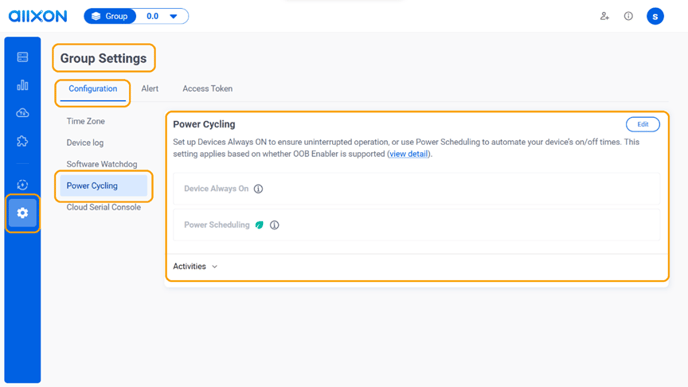
- Click the Edit button to enable or configure your settings:
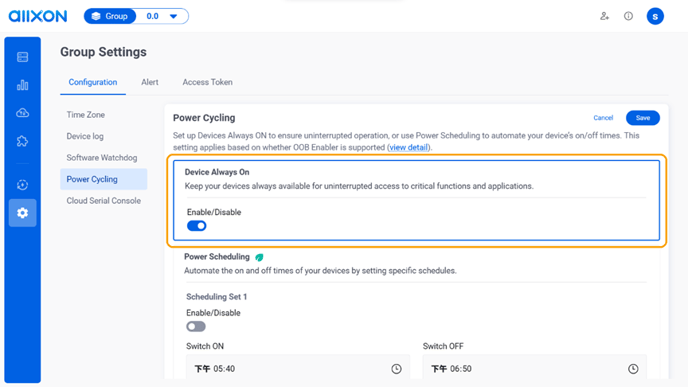
- Toggle Device Always ON to keep the device powered on continuously.
- Set up Power Scheduling (up to three schedules) to define specific ON/OFF times and the days they should apply.
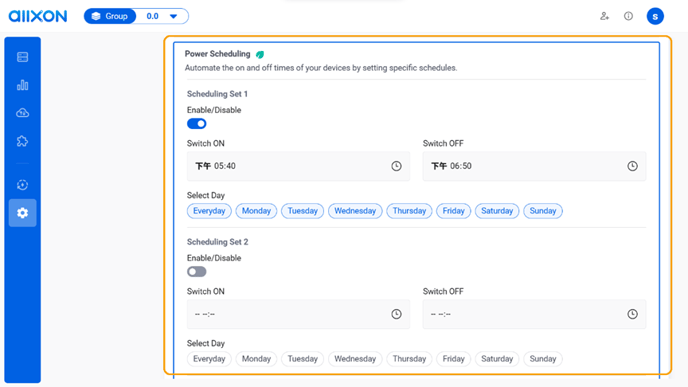
*Note: Device Always ON and Power Scheduling cannot be enabled at the same time. Activating one will automatically disable the other.
- Toggle Device Always ON to keep the device powered on continuously.
- After configuring, click the Save button. A confirmation banner will appear in the upper-right corner.
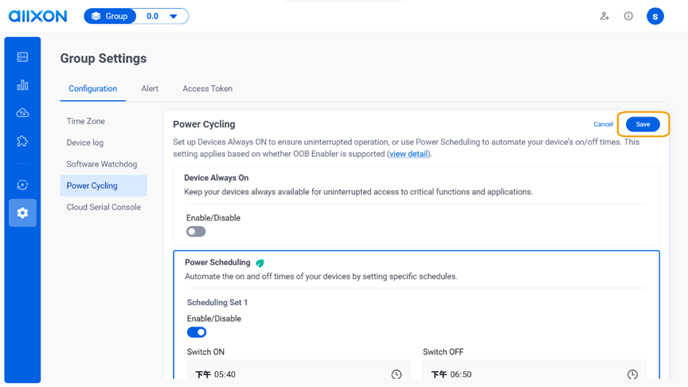
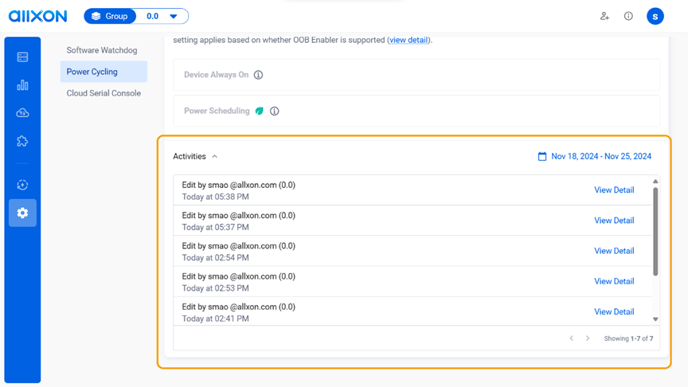
- You can click the Activities dropdown arrow to view the edit history. Use the Calendar icon to filter by date.
Verify Your Configuration
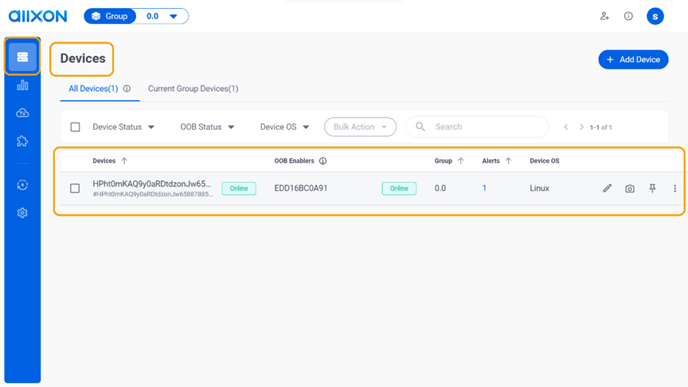
- Go to the Device List and select the device where you’ve set up Power Scheduling or Device Always ON to open the Device Details Page.
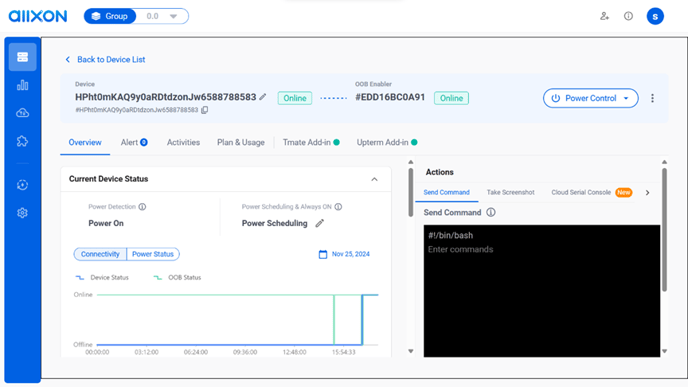
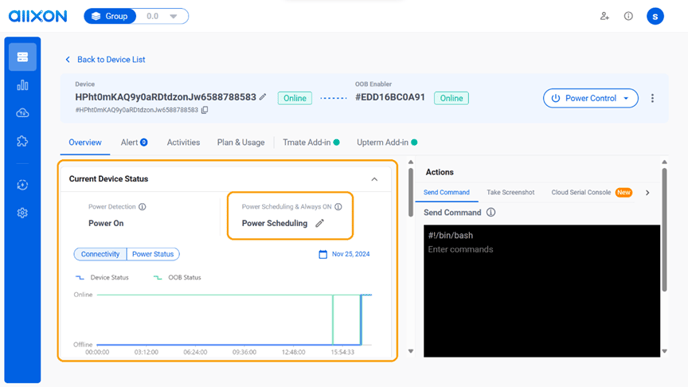
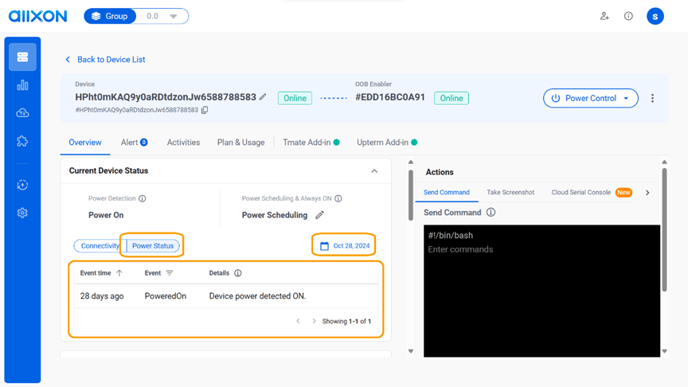
- On the Current Device Status card, find the Power Scheduling & Always ON section. Configured settings will be displayed here. To modify them, click the pencil icon to return to the Group Settings Page.
View Event History
- Click the Power Status button to view the history of Power Scheduling and Always ON events. Use the Calendar icon to filter by date.
You’re All Set!